
Settings & Configuration
Configure AI providers, models, prompts, and application preferences
Settings & Configuration
The Settings panel is where you configure your AI providers, choose models, customize narration style, and set application preferences.
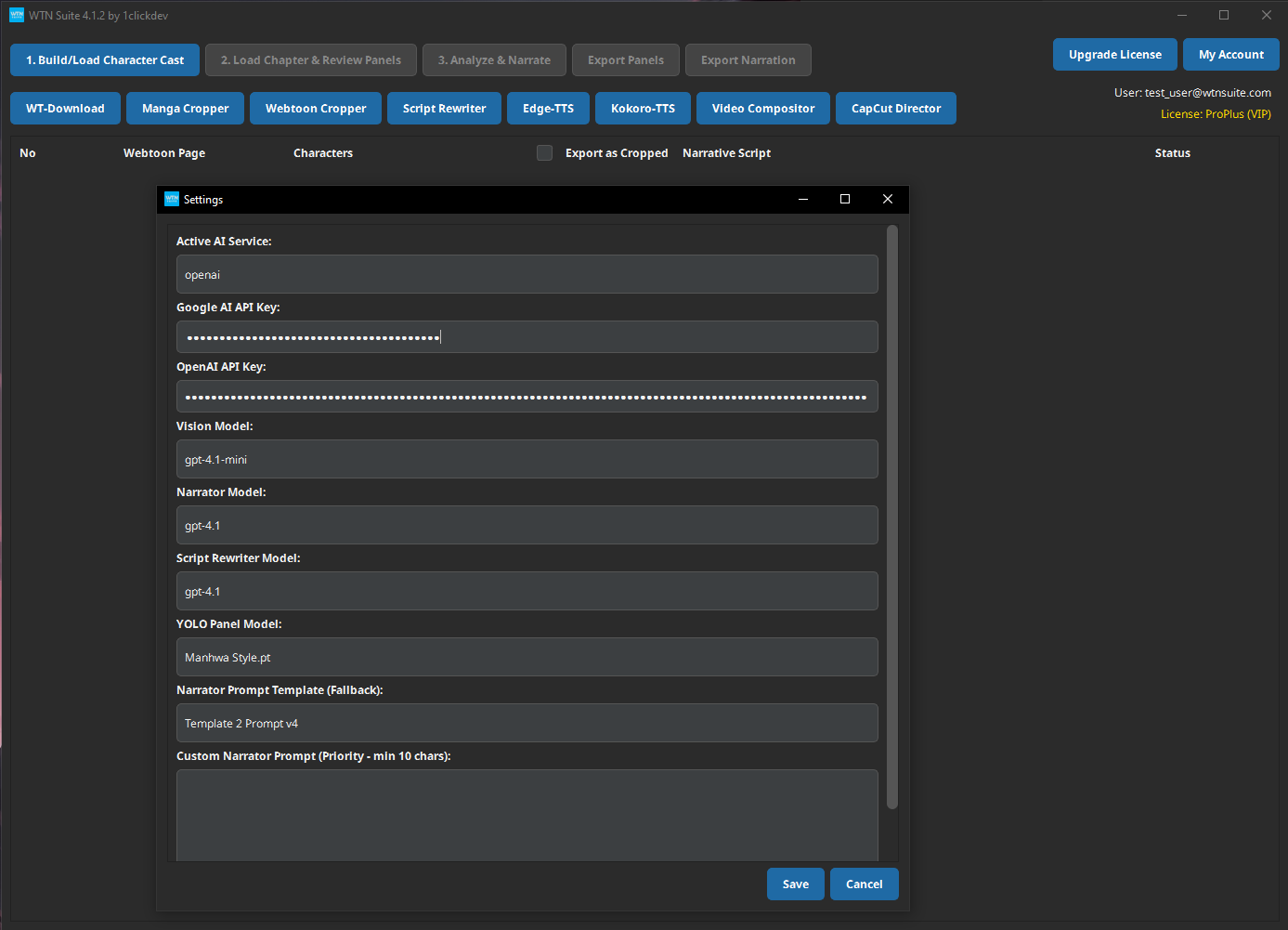
AI Configuration (Most Important)
Setting Up Your API Key
This is the first thing to configure — you need an API key to use the AI pipeline.
Choose a Provider
WTN Suite supports three AI providers:
| Provider | Best For | Free Tier |
|---|---|---|
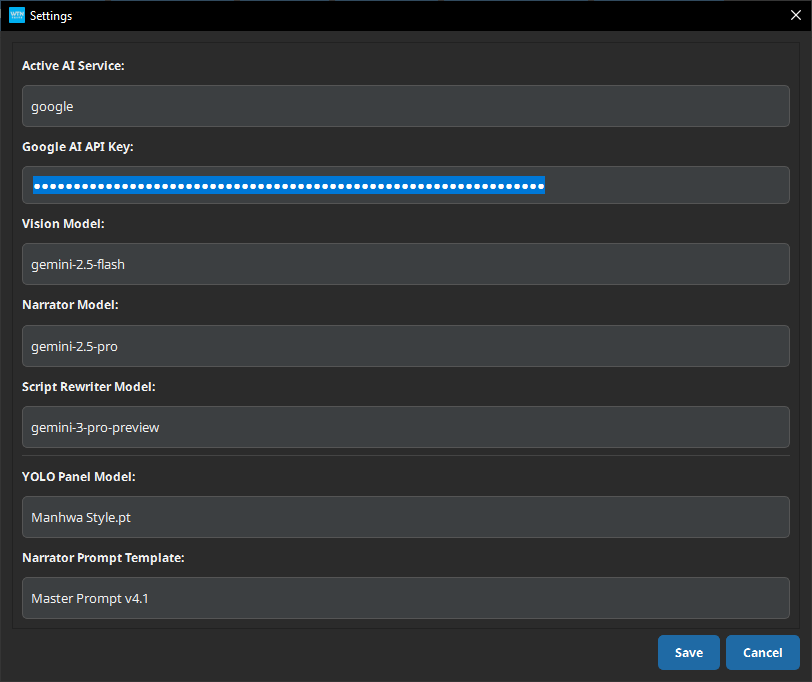
| Google AI (Gemini) | Most users — excellent quality, generous free tier | Yes |
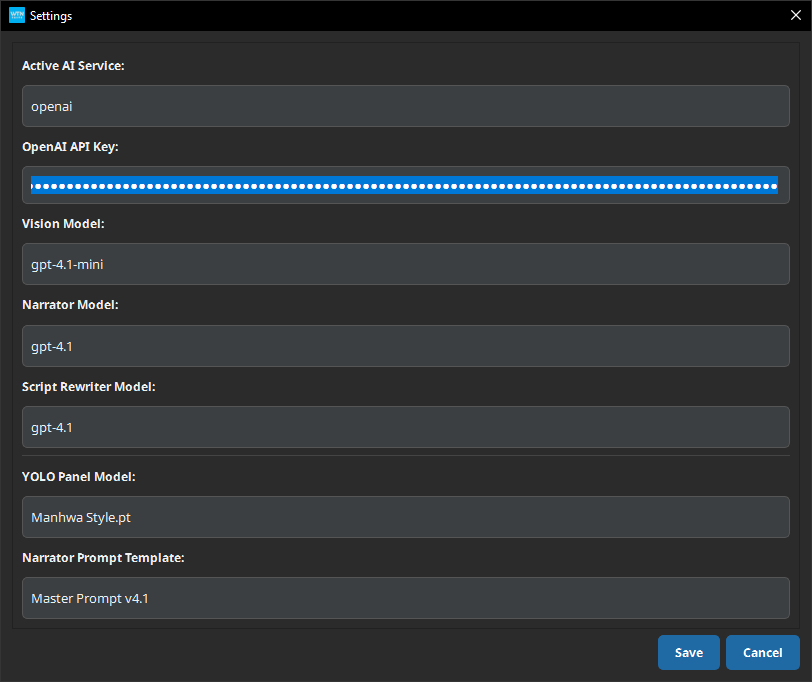
| OpenAI (GPT-4/5) | Alternative option — excellent quality | Limited |
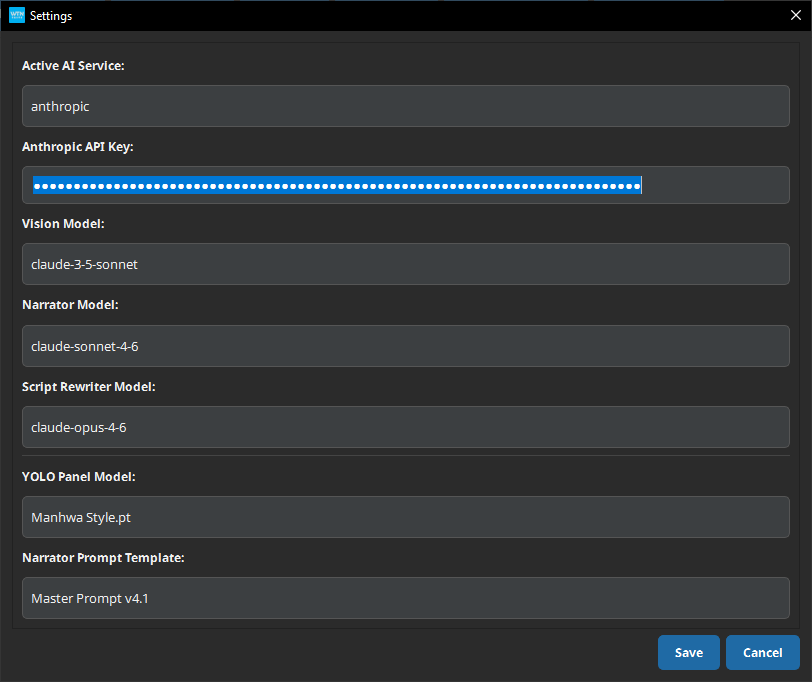
| Anthropic (Claude) | Premium quality narration — strong creative writing | No |
Get Your Key
- Google AI: Visit Google AI Studio → Click "Create API Key" → Copy it
- OpenAI: Visit OpenAI Platform → Click "Create new secret key" → Copy it
- Anthropic: Visit Anthropic Console → Click "Create Key" → Copy it
Enter It in Settings
Open Settings in WTN Suite, select your provider's tab, paste your key, and click Save.
:::
⚠️ Warning
Keep your API keys secure. WTN Suite stores them encrypted on your computer, but you should keep your own backup. Never share your keys publicly.
Switching Providers
You can switch between Google AI, OpenAI, and Anthropic at any time using the Active AI Service dropdown. This affects both Scene Analysis (Step 2) and Narrative Writing (Step 3). All three API keys are saved — switching providers does not erase your other keys.
Model Selection
| Setting | What It Controls |
|---|---|
| Vision Model | Which AI model analyzes your panels in Step 2 |
| Narrator Model | Which AI model writes the narration in Step 3 |
Available models depend on your selected provider and what's currently offered by Google, OpenAI, or Anthropic. The default selections work well for most content.
💡 Tip
If you're not sure which models to choose, leave them on the default settings. They're pre-selected for the best balance of quality and speed.
Panel Detection Model
Choose which AI model detects panels in Step 1:
| Model | Best For |
|---|---|
| Manhwa Style | Korean webtoons — vertical scroll format with clear panel separations |
| Manhua Style | Chinese/Japanese manga — page-based layouts with complex panel arrangements |
💡 Tip
Manhwa Style works best for most webtoons. Switch to Manhua Style if you're working with traditional manga page layouts.
Narrator Prompt Settings
Built-in Templates
Control how the AI writes narration by choosing a template:
| Template | Best For |
|---|---|
| Master Prompt v4.1 | Most content — cinematic storytelling with smooth transitions |
| Template 2 v4 | Specific styles — choose Pure Narration, Character Interaction, Visuals Only, or Mixed |
| Template 3 v3 | Faster processing — a simplified version of Template 2 |
| Khmer Language | Cambodian/Khmer language narration |
Custom Prompt
Write your own narration instructions for full creative control. Your custom prompt tells the AI exactly how to write — tone, style, detail level, and language.
Good custom prompt examples:
- "Write dramatic narration in present tense. Focus on character emotions and inner thoughts. Keep each segment to 2-3 sentences."
- "Narrate like a mystery novel. Build suspense and use vivid sensory descriptions. End each panel's narration with a hook."
- "Write casual, humorous narration as if a friend is telling the story. Use modern language and occasional jokes."
ℹ️ Info
Your custom prompt must be at least 10 characters long. The more specific you are, the better the results.
Application Preferences
CapCut Draft Path
Set the folder path where CapCut Director saves project files. Point this to CapCut's drafts folder so exported projects appear automatically in CapCut's project list.
Auto-Login
Enable to automatically log in with your saved credentials when launching WTN Suite. Your login information is stored locally with encryption.
Tips
💡 Tip
Start with defaults if you're new. The default AI provider, models, and narrator template all work well out of the box. Customize later once you're familiar with the results.
💡 Tip
Experiment with narrator templates on a single chapter before batch processing a series. Each template produces a noticeably different style.
💡 Tip
Check model availability occasionally — AI providers update their available models. If your results change unexpectedly, check Settings to make sure your selected model is still available.
Next Steps
- Quick Start Tutorial — Use your configured settings to create your first video
- Pipeline Overview — Understand how settings affect each pipeline step
- Subscription Guide — Compare plans and features