
Edge-TTS
Generate natural-sounding speech audio from your narration text
Edge-TTS
Edge-TTS converts your narration text into spoken audio using natural-sounding voices. It uses Microsoft's cloud-based text-to-speech service, which is free and available on all plans.
Available on: All plans
When You Need It
- You've finished the pipeline and have narration text ready
- You want to generate audio for your narrated video
- You need a free, easy-to-use text-to-speech tool
Interface Overview
Edge-TTS has two tabs at the top:
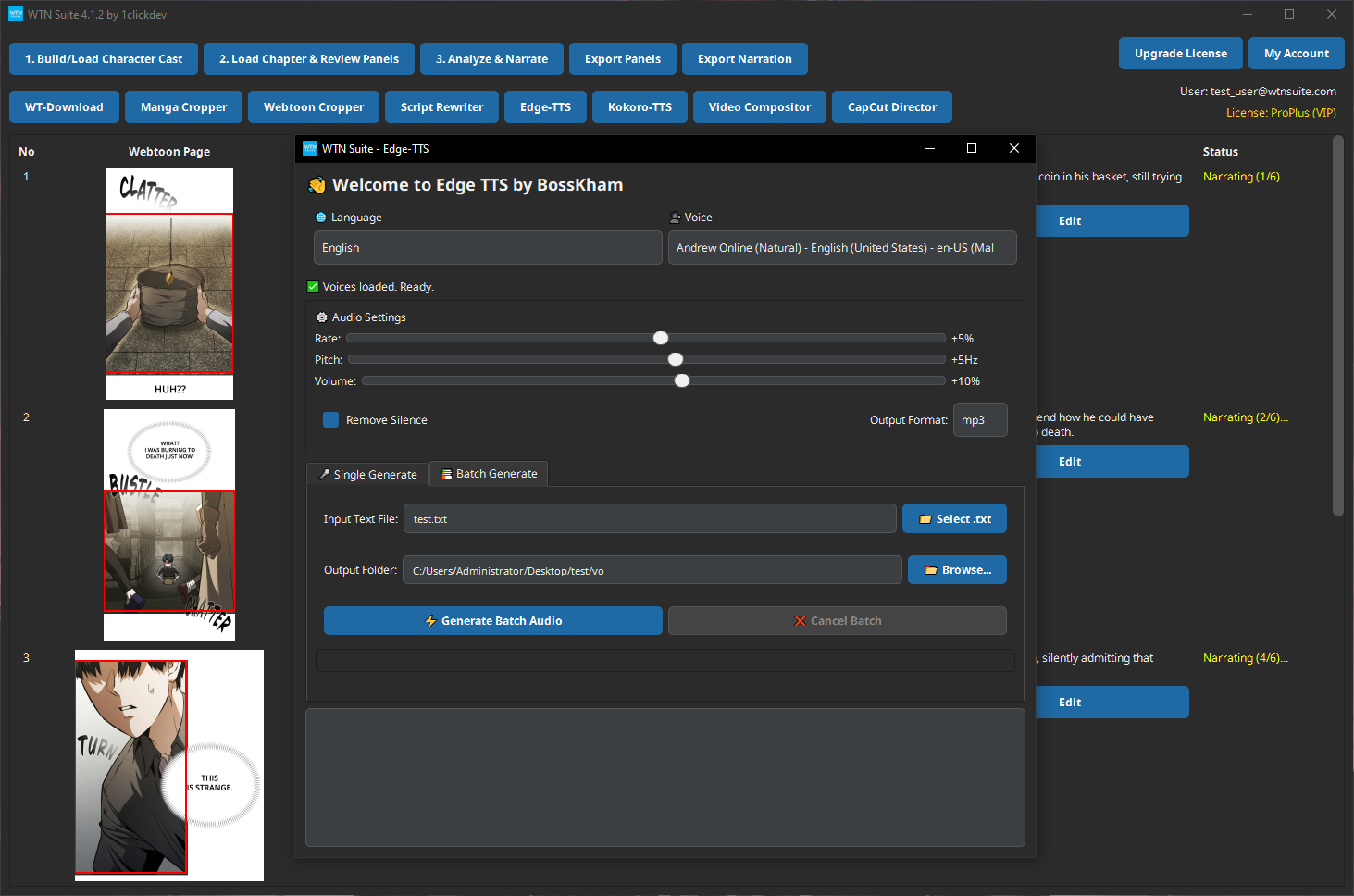
- Single Generate — Type or paste text and generate one audio file. Good for testing voices or narrating short clips.
- Batch Generate — Load a TXT file and generate one audio file per line automatically. Required for the Video Compositor.
Settings at the top (Language, Voice, Rate, Pitch, Volume, Output Format) apply to both tabs.
Single Generate
Use this when you want to preview a voice, test your settings, or generate audio for a single piece of text.
Open Edge-TTS
Click "Edge-TTS" on the toolbar, then make sure you're on the Single Generate tab.
Choose a Voice
Select a language from the Language dropdown, then pick a voice from the Voice dropdown. There are 50+ voices available across many languages including English, Spanish, Japanese, Korean, and more.
Adjust Settings
Fine-tune the audio using the sliders:
| Setting | Range | Recommendation |
|---|---|---|
| Rate | -100% to +100% | 0% default, try +10% to +20% for faster narration |
| Pitch | -50Hz to +50Hz | 0Hz default works well for most voices |
| Volume | -100% to +100% | 0% default |
| Output Format | MP3, WAV, M4A | MP3 for smallest file size |
Generate
Click ✨ Generate Audio. When done, use ▶️ Play Audio to preview, then 💾 Save Audio to save the file to your chosen location.
💡 Tip
Single Generate is great for testing voices before committing to a full batch run. Try a few different voices on the same line of text to find the one that fits your narration style.
Batch Generate
Use this when you want to generate audio for a full chapter — one audio clip per panel. This is the mode you need before using the Video Compositor.
Export Narration from the Pipeline
In the main WTN Suite window, after the AI pipeline finishes, click "Export Narration". This saves a TXT file where each line is the narration for one panel.
The file looks like this:
The city sleeps as dawn breaks over the horizon.
Mia rushes through the empty streets, her breath visible in the cold air.
She stops at the gate, eyes wide, heart pounding.
Each line will become one audio clip.
Open Edge-TTS → Batch Generate Tab
Click "Edge-TTS" on the toolbar, then click the Batch Generate tab.
Choose Voice and Settings
Select your language, voice, and audio settings in the header. These apply to all clips in the batch.
Select Your TXT File
Click 📁 Select .txt and choose the narration TXT file you exported from the pipeline.
Select Output Folder
Click 📂 Browse... and choose a folder where the audio clips will be saved.
Generate Batch Audio
Click ⚡ Generate Batch Audio. A progress bar shows how many clips have been processed. You can click ❌ Cancel Batch at any time to stop.
ℹ️ Info
Output files are named automatically using the TXT filename and a 4-digit number. For example, if your file is narration.txt, the output will be:
narration_0001.mp3
narration_0002.mp3
narration_0003.mp3
...
Each number matches a line in the TXT file, in order. The Video Compositor uses this numbering to match audio to panels.
ℹ️ Info
A 40-panel chapter typically takes 2–3 minutes to generate all audio clips.
Edge-TTS vs Kokoro-TTS
Not sure which to use? Here's a quick comparison:
| Feature | Edge-TTS | Kokoro-TTS |
|---|---|---|
| Plan | All plans | Standard/Pro |
| Internet | Required (cloud-based) | Not needed (runs locally) |
| Voice quality | Natural, clear | Higher quality, more expressive |
| Speed | Fast (cloud processing) | Depends on your hardware |
| Languages | 50+ languages | English focus |
| Cost | Free | Free (included with plan) |
| GPU needed | No | No (but recommended) |
💡 Tip
Start with Edge-TTS — it's available on all plans, free, fast, and the quality is excellent. Consider upgrading to Kokoro-TTS when you want more expressive, premium-quality voices.
Tips
💡 Tip
Keep the same voice across a project. Switching voices mid-chapter sounds jarring. Pick one voice for narration and stick with it throughout.
💡 Tip
Speed matters for mood. Action scenes sound better at +10% to +20% rate. Dramatic or emotional moments work well at 0% or slightly below. The default 0% is a safe starting point.
💡 Tip
Enable Remove Silence to trim awkward pauses from generated audio. This is especially useful before combining clips in the Video Compositor.
Common Issues
⚠️ Warning
"Network error" or no audio generated? Edge-TTS requires an internet connection. Check your connection and try again. Brief service interruptions are rare but do happen.
⚠️ Warning
Batch generated fewer files than expected? Check that your TXT file has one narration per line with no blank lines separating them. Empty lines are skipped, so make sure each panel's narration is on its own single line.
Next Steps
- Video Compositor — Combine your panels and audio into a video
- Kokoro-TTS — Try higher-quality neural voices (Standard/Pro)