
Kokoro-TTS
High-quality neural text-to-speech that runs on your computer
Kokoro-TTS
Kokoro-TTS generates premium-quality speech audio using a neural voice model that runs directly on your computer. It produces more expressive, natural-sounding narration compared to Edge-TTS — and works offline.
📝 Note
Available on: Standard and Pro plans only. All plans can use Edge-TTS instead.
When You Need It
- You want the highest quality narration audio
- You need to work offline (no internet required after setup)
- You want more natural, expressive voice output
- You have an NVIDIA graphics card for fast generation
First-Time Setup
Kokoro-TTS needs a small one-time setup before first use:
Install eSpeak-NG
Download eSpeak-NG from GitHub and install it. This is a small language processing tool that Kokoro uses behind the scenes.
Launch Kokoro-TTS
Click "Kokoro-TTS" on the toolbar. The first launch downloads the voice model files (~500 MB). This only happens once.
Ready to Go
After setup, Kokoro-TTS launches instantly and works offline.
Interface Overview
Kokoro-TTS has two tabs:
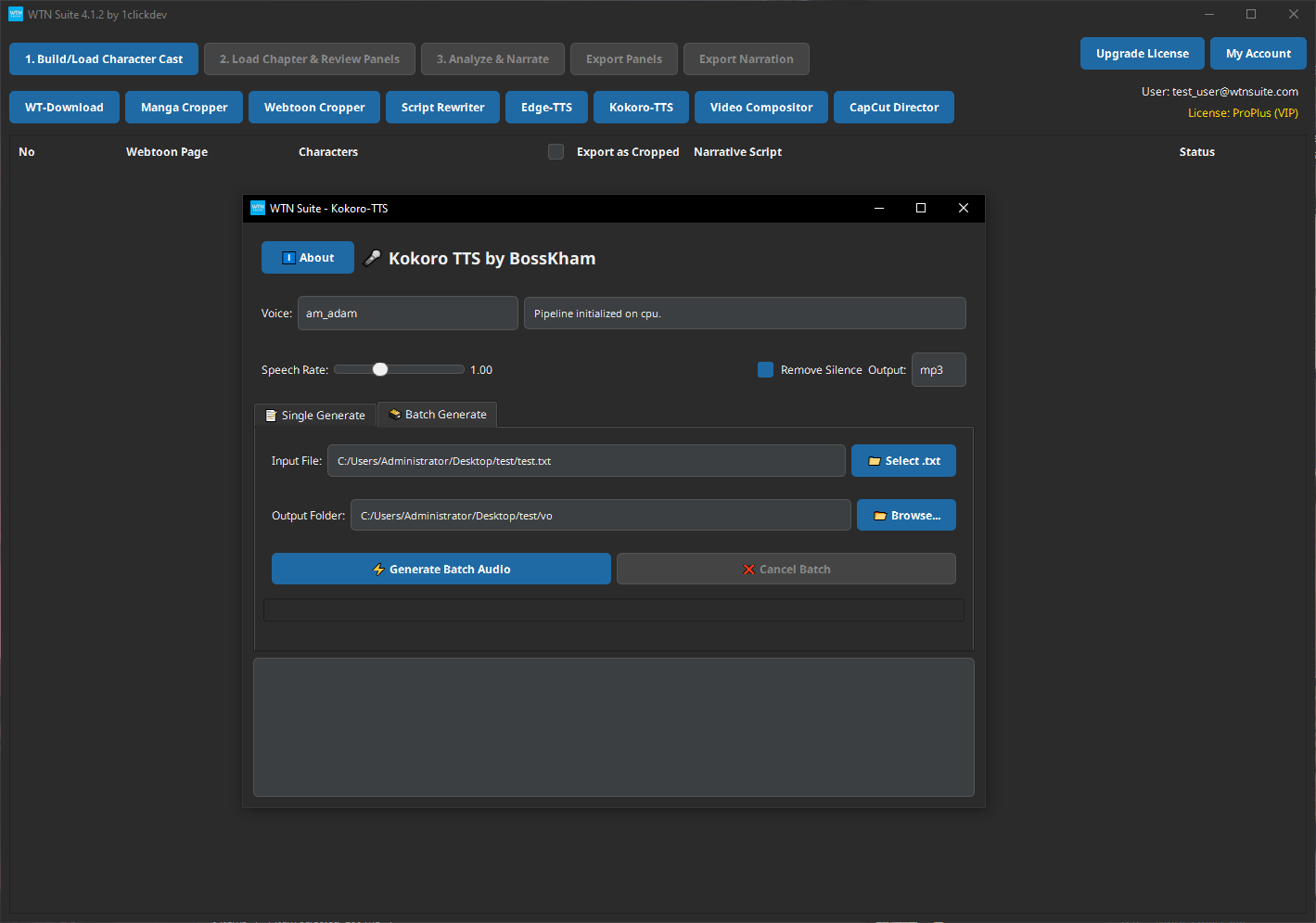
- Single Generate — Type or paste text and generate one audio file. Good for testing voices or generating a single clip.
- Batch Generate — Load a TXT file and generate one audio clip per line automatically. Required for the Video Compositor.
Settings at the top (Voice, Speech Rate, Remove Silence, Output Format) apply to both tabs.
ℹ️ Info
Kokoro-TTS has fewer audio controls than Edge-TTS. There is no Pitch or Volume adjustment — only Speech Rate. Output formats are MP3 and WAV (no M4A).
Single Generate
Use this to preview a voice, test your settings, or generate audio for a single piece of text.
Open Kokoro-TTS → Single Generate Tab
Click "Kokoro-TTS" on the toolbar. Wait for the model status to show it's ready, then make sure you're on the Single Generate tab.
Choose a Voice
Select a voice from the Voice dropdown. Kokoro has a smaller voice selection than Edge-TTS, but each voice is higher quality and more expressive.
Adjust Settings
| Setting | Range | Recommendation |
|---|---|---|
| Speech Rate | 0.50x – 2.00x | 1.00x default, try 1.10x–1.20x for narration |
| Remove Silence | On/Off | Enable to trim pauses before compositing |
| Output Format | MP3, WAV | MP3 for smallest file size |
Generate
Click ✨ Generate Audio. Audio is processed on your computer — no internet needed. When done, click ▶️ Play Audio to preview, then 💾 Save Audio to save the file.
Batch Generate
Use this when generating audio for a full chapter — one clip per panel. This is what you need before using the Video Compositor.
Export Narration from the Pipeline
In the main WTN Suite window, after the AI pipeline finishes, click "Export Narration". This saves a TXT file where each line is the narration for one panel.
The file looks like this:
The city sleeps as dawn breaks over the horizon.
Mia rushes through the empty streets, her breath visible in the cold air.
She stops at the gate, eyes wide, heart pounding.
Each line will become one audio clip.
Open Kokoro-TTS → Batch Generate Tab
Click "Kokoro-TTS" on the toolbar and switch to the Batch Generate tab.
Choose Voice and Settings
Select your voice and adjust Speech Rate in the header. These settings apply to every clip in the batch.
Select Your TXT File
Click 📁 Select .txt and choose the narration TXT file exported from the pipeline.
Select Output Folder
Click 📂 Browse... and choose where the audio clips will be saved.
Generate Batch Audio
Click ⚡ Generate Batch Audio. A progress bar shows Processing X / Y as each clip is generated. Click ❌ Cancel Batch at any time to stop.
ℹ️ Info
Output files are named automatically using the TXT filename and a 4-digit number. For example, if your file is narration.txt, the output will be:
narration_0001.mp3
narration_0002.mp3
narration_0003.mp3
...
Each number matches a line in the TXT file, in order. The Video Compositor uses this numbering to match audio to panels.
Performance
Generation speed depends on your hardware:
| Hardware | Speed | Example (40 clips) |
|---|---|---|
| NVIDIA GPU (RTX 3060+) | Real-time or faster | ~2–3 minutes |
| NVIDIA GPU (older) | Near real-time | ~5 minutes |
| CPU only (no GPU) | 2–5x slower than real-time | ~15–20 minutes |
💡 Tip
If you have an NVIDIA graphics card, make sure your drivers are up to date. Kokoro-TTS automatically uses your graphics card for faster processing when available.
ℹ️ Info
No NVIDIA GPU? Kokoro-TTS still works on CPU — it's just slower. For faster processing without a GPU, consider using Edge-TTS instead.
Tips
💡 Tip
Kokoro-TTS shines with English narration. If you're narrating in other languages, Edge-TTS may have better language coverage with its 50+ voice options.
💡 Tip
Enable Remove Silence before batch generating. This trims pauses from the output and produces cleaner audio timing when the Video Compositor combines clips into a video.
Common Issues
⚠️ Warning
"eSpeak-NG not found" error? You need to install eSpeak-NG separately (see First-Time Setup above). After installing, restart WTN Suite.
⚠️ Warning
Very slow generation? Your computer is likely using CPU processing instead of your graphics card. Make sure you have an NVIDIA GPU with updated drivers. AMD and Intel GPUs are not currently supported for acceleration.
⚠️ Warning
Batch generated fewer files than expected? Check that your TXT file has one narration per line with no blank lines. Empty lines are skipped, so each panel's narration must be on its own single line.
Next Steps
- Video Compositor — Combine your panels and audio into a video
- Edge-TTS — Alternative TTS available on all plans